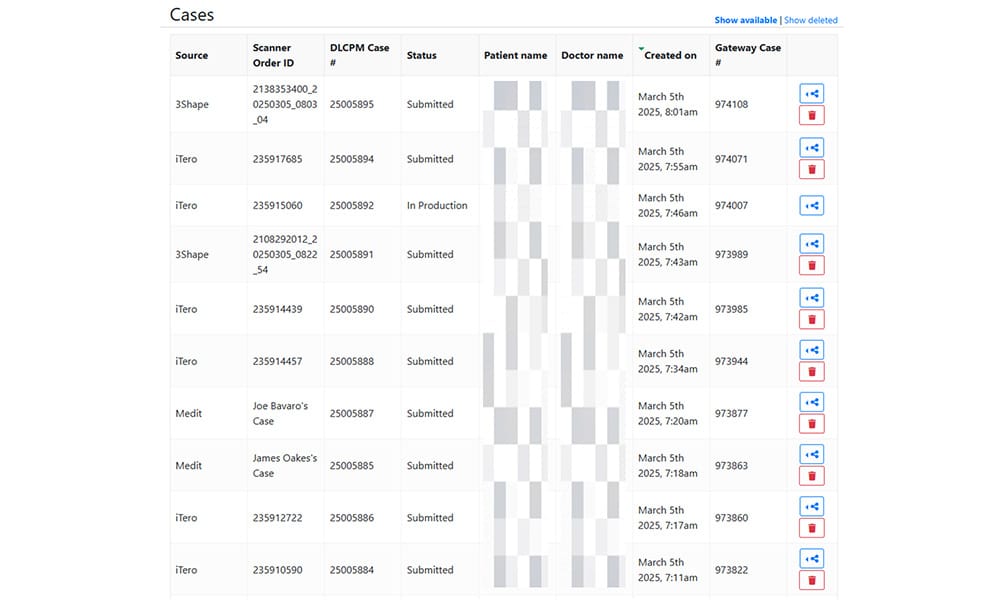
Crown Club’s digital gateway is designed to work with virtually any intraoral or desktop scanner, ensuring effortless case submission regardless of the scanner brand or model. Whether you’re using a leading system like iTero or 3Shape or an emerging scanner, Crown Club eliminates compatibility concerns—allowing you to focus on patient care, not technology barriers.
Key Benefits:
Universal Compatibility – Works with all major scanner brands, including iTero, 3Shape, Medit, Planmeca, and more.
Effortless Case Submissions – Send scans directly from your scanner to Crown Club without extra steps or format conversions.
No Disruptions to Your Workflow – Keep using your scanner as you normally would—Crown Club integrates seamlessly.
Automatic File Processing – Our system recognizes and processes all major scanner file formats, reducing manual effort.
Supported Scanner Brands
Crown Club’s digital gateway supports a wide range of leading and emerging scanners, ensuring smooth integration:
Major Scanner Brands
iTero – Widely used in restorative and orthodontic workflows.
3Shape – TRIOS scanners provide precision and ease of use.
Medit – Affordable, open-system scanners for flexible workflows.
Planmeca – High-quality imaging and CAD/CAM capabilities.
Sirona (Dentsply Sirona Primescan & Omnicam) – Integrated with popular chairside systems.
Dexis (formerly Carestream CS3600/CS3700/CS3800) – Designed for both restorative and implant workflows.
3DISC – Compact and cost-effective, with open-source file compatibility.
Supported Scanner Brands
Crown Club’s system is also fully compatible with emerging and open-system scanners, ensuring no scanner is left behind. If your scanner exports standard STL, PLY, or OBJ files, it will work with Crown Club.
Scanner Connection Guide
Connecting your intraoral scanner to Crown Club is quick and effortless. Whether you use iTero, 3Shape, Medit, Planmeca, or another system, follow our simple connection guide to start sending cases seamlessly.
Search for “Crown Club” and add us as a preferred lab.
Save changes and restart your scanner.
You can now send cases directly to Crown Club.
3Shape TRIOS
Open your 3Shape Unite software.
Go to Settings > Labs and search for “Crown Club”.
Click Connect and follow the prompts.
Once connected, you can submit cases through TRIOS Send to Lab.
Medit
Open Medit Link software.
Click Partners > Add Lab and search for “Crown Club”.
Request a connection and wait for approval.
Once approved, send scans via Medit Link Portal.
Planmeca
Open your Romexis software.
Select “Send to Lab” and enter Crown Club as the recipient.
Upload and submit your scan files directly through Romexis.
Sirona Primescan
Open your Sirona Connect software.
Search for “Crown Club” in the partner list.
Click Add as Partner and save.
Now, you can submit cases directly from CEREC or Primescan.
Dexis (Formerly Carestream)
Log in to your CS Imaging software.
Navigate to Partners > Add a Lab and search for “Crown Club”.
Confirm the connection and save settings.
Start sending cases through the CS platform.
3DISC
Open the 3DISC software on your scanner.
Go to Lab Connections > Add a Lab.
Search for “Crown Club” and select it as your preferred lab.
Once connected, submit cases through the software.
Other Scanners
If your scanner is not listed, you can still connect with Crown Club by exporting STL, PLY, or OBJ files and uploading them through our Secure Online Portal.
Frequently Asked Questions (FAQs)
Will my scanner work with Crown Club?
Yes! Crown Club is compatible with all major intraoral scanners, including iTero, 3Shape, Medit, Planmeca, Sirona, Dexis, 3DISC, and more. If your scanner exports STL, PLY, or OBJ files, you can send cases to Crown Club seamlessly.
Can I submit cases directly from my scanner’s software?
Yes, in most cases, you can submit directly from your scanner’s native interface without needing an extra step. We provide setup guidance to make the process seamless.
What if I’m using a scanner not listed here?
If your scanner exports open-format files (STL, PLY, OBJ), it is fully compatible with Crown Club. If you’re unsure, contact our team for a compatibility check.
How do I get started with scanner integration?
Simply follow the Scanner Connection Guide above to add Crown Club as your preferred lab. If you need assistance, our support team is happy to help!
Explore Crown Club’s complete range of tools and technology: